



A Guide to Microsoft 365 Copilot Safety for Law Firms

This guide shows how Microsoft 365 Copilot decides what each attorney can see. It covers where law firms usually overshare client files. It also lists what to clean up in SharePoint, OneDrive, Teams, mail, and guest access before your firm adopts Copilot.
Attorneys usually want to know whether Copilot can open privileged client files. The answer starts with permissions. Copilot works within what each user is already allowed to open. If a confidential matter folder is open to more people than it should be, Copilot can find and summarize it for any of them.
Key takeaways
- Microsoft 365 Copilot respects the permissions a user already has. It does not create new access.
- Overshared files, old sharing links, broad Teams channels, and guest accounts are the main source of exposure.
- A permissions cleanup before rollout matters more than any single Copilot setting.
- A written AI use policy and attorney review of every output belong alongside the technical work.
- A small pilot group lets you test what Copilot retrieves before the whole firm has it.
How Microsoft 365 Copilot decides what a lawyer can see
Copilot follows existing permissions
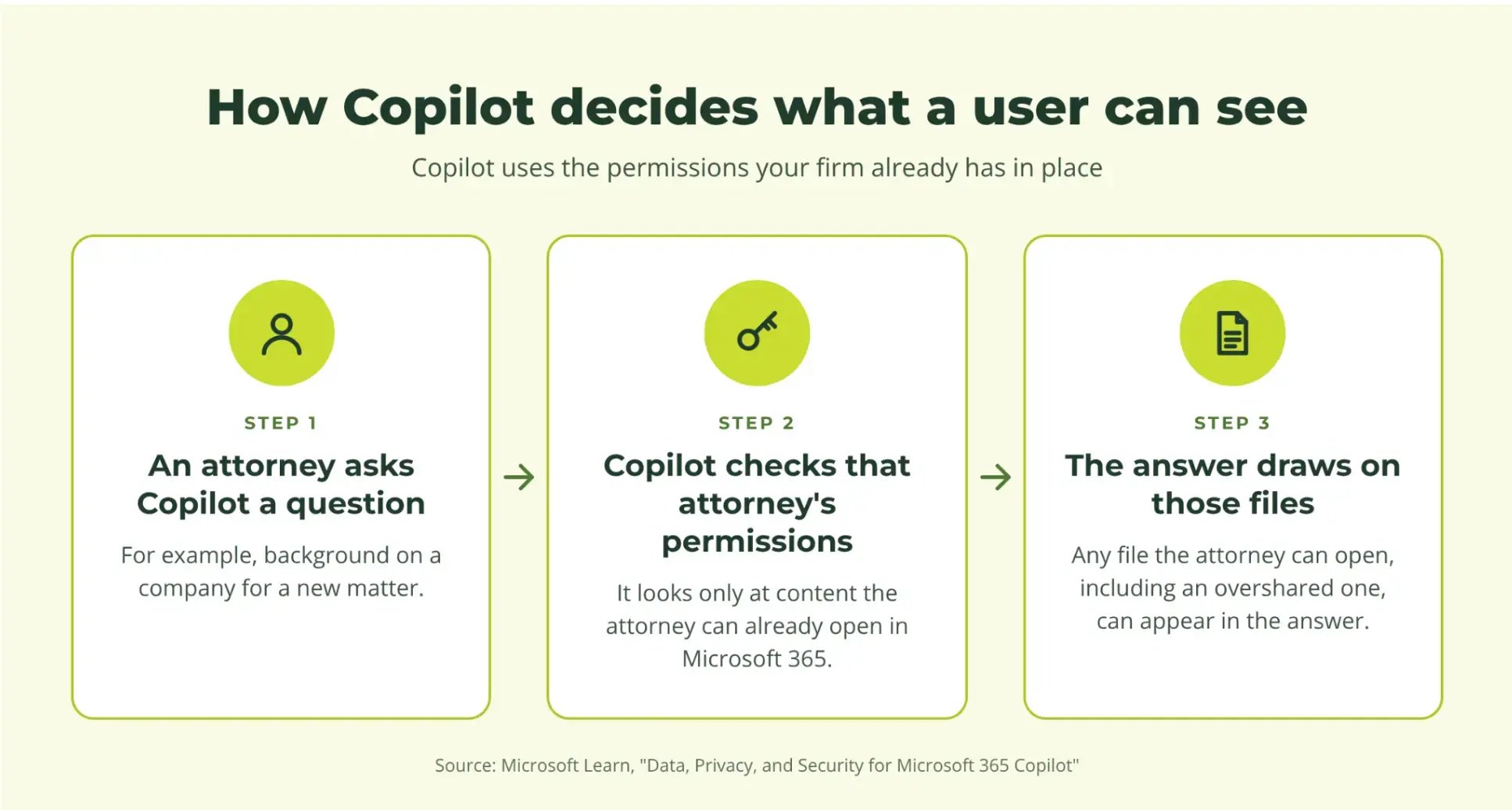
Microsoft states that Copilot only surfaces organizational data to which individual users have at least view permissions. It relies on the same access controls as other Microsoft 365 services.
In practice, Copilot will not hand an associate a file they could not already open. It also has no sense of which files are sensitive unless your permissions and labels say so.
What happens to prompts and responses
Microsoft also states that prompts, responses, and data accessed through Microsoft Graph are not used to train the foundation language models behind Copilot. Microsoft stores the prompt and the response, and administrators can view and manage that stored data through Microsoft Purview.
Microsoft adds that some Copilot experiences use additional models that carry separate terms. Ask your IT provider which Copilot features your firm has switched on, and read the terms that apply to each.
How overshared files expose client information through Copilot
A realistic example
Imagine a confidential folder for Client A in SharePoint. Years ago, someone shared it with the whole firm to speed up a project, and nobody changed it back.
An attorney on an unrelated Client B matter asks Copilot for background on a company. Client A's folder is open to that attorney, so Copilot can pull from it. Copilot used access that the folder permissions already granted.
Why Copilot makes old sharing mistakes visible
Before Copilot, a mis-shared folder could sit unnoticed for years because nobody browsed that deep. Copilot searches across everything a user can reach. A buried file can now appear in an everyday answer.
That is why a screen or ethical wall only works in Microsoft 365 when permissions actually enforce it. A conflict memo alone does not change what Copilot can reach.
Where oversharing hides
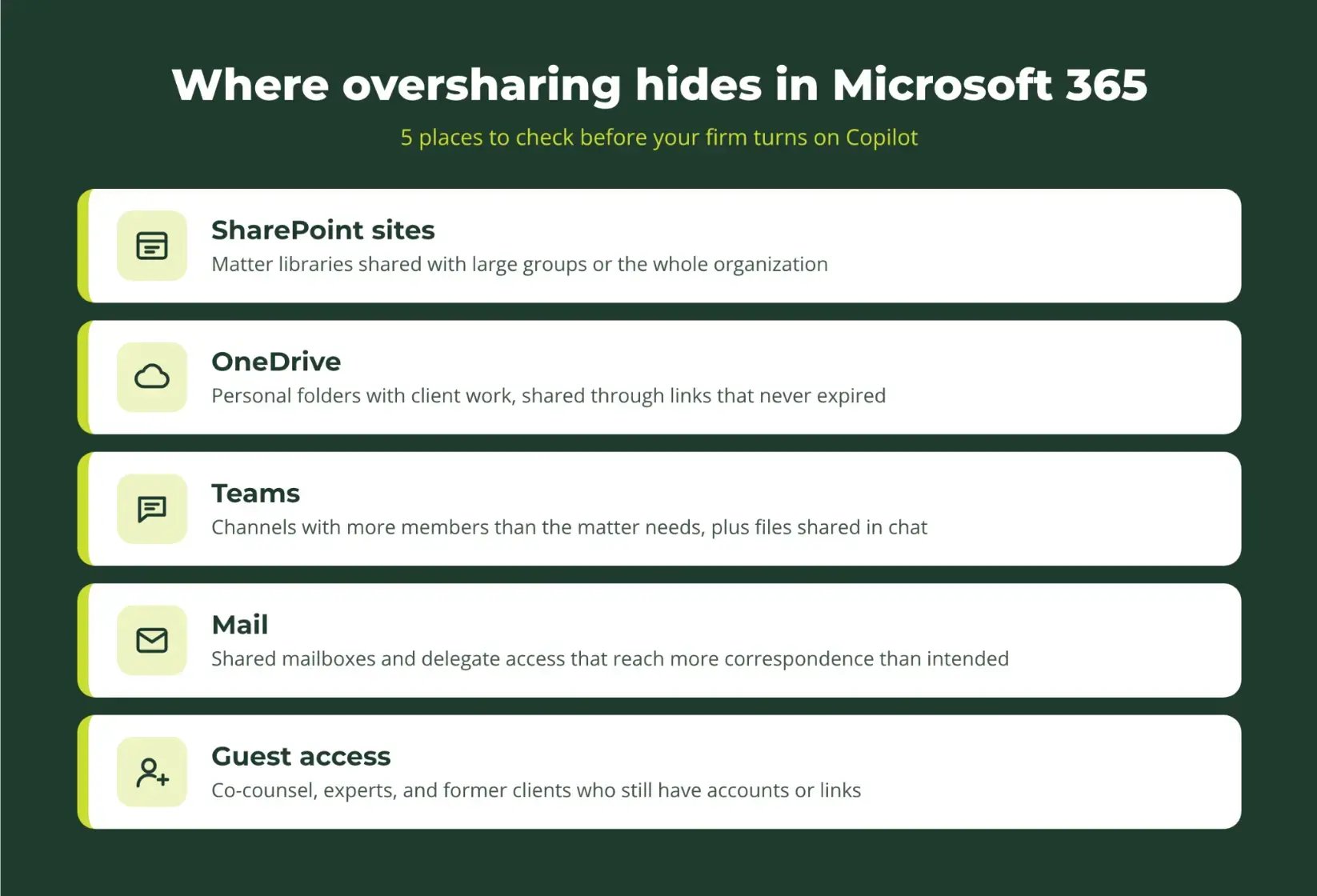
Look for broad access in these places:
- SharePoint sites. Matter libraries shared with large groups, or with everyone in the organization.
- OneDrive. Personal folders holding client work, shared through links that never expired.
- Teams. Channels with more members than the matter needs, and chat files that carry client details.
- Mail. Shared mailboxes and delegate access that reach more correspondence than intended.
- Guest access. Co-counsel, experts, and former clients who still have accounts or links.
A permissions cleanup to finish before adoption
Treat this as a project with an owner and a date. Each step below produces something you can document.
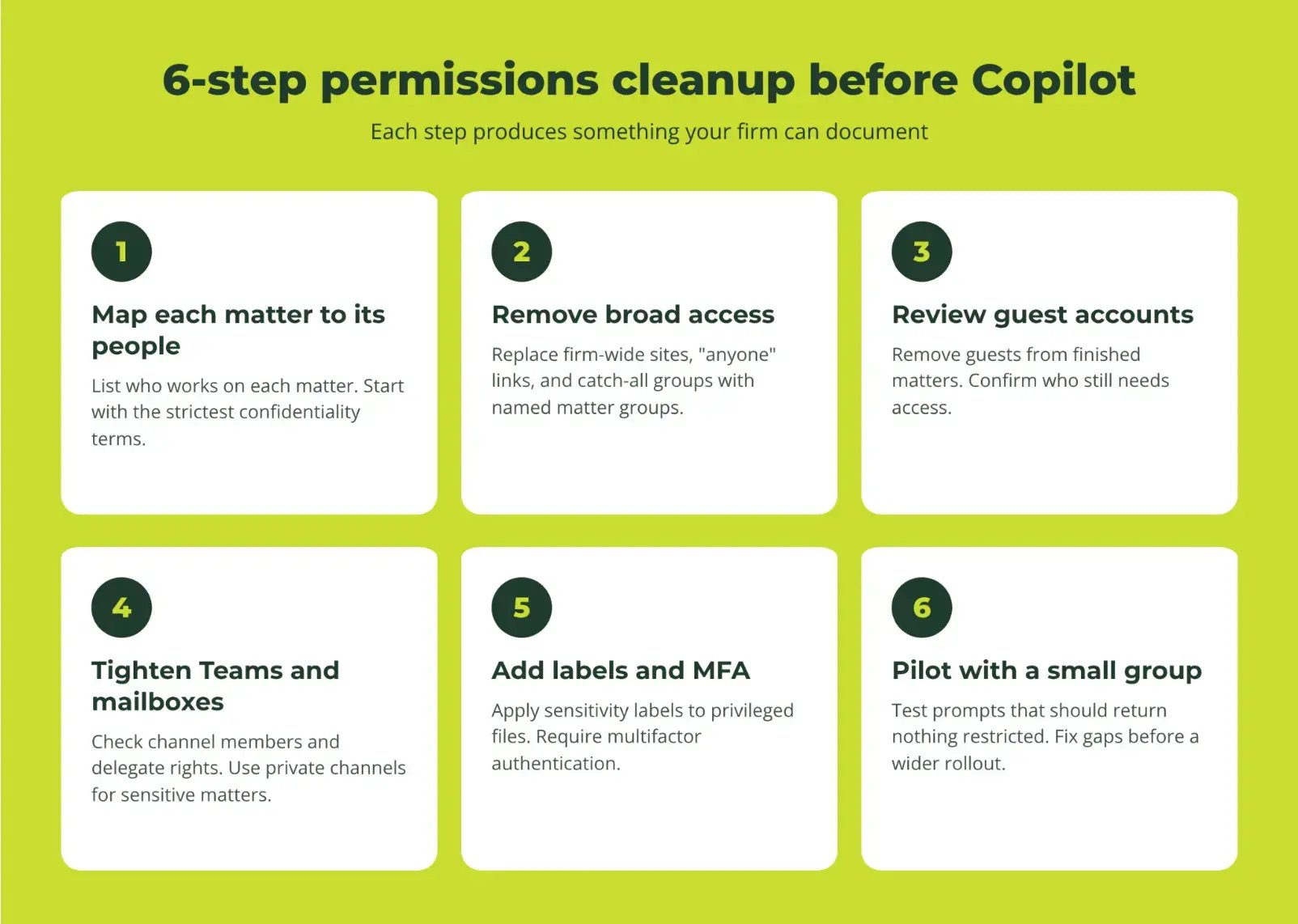
Map each matter to the people who should see it
Start with the matters that carry the strictest confidentiality obligations or outside-counsel guidelines. List who works on each one. This list becomes the standard every permission is checked against.
Remove broad access
Look for sites and files open to the whole firm, old "anyone" links, and large catch-all groups. SharePoint Advanced Management includes reporting that helps administrators find content open to wide internal audiences. Replace broad access with named groups tied to each matter.
Review guest and external accounts
Remove guest accounts for finished matters and confirm who still needs access. For more on why this matters, see identity as your security perimeter.
Tighten Teams channels and mailbox access
Check who sits in each Team's channel and who holds delegate rights on shared mailboxes. Move sensitive matter conversations into private channels with a defined membership.
Add labels and sign-in protection
Sensitivity labels can mark privileged and highly confidential material so that handling rules follow the file. Multifactor authentication protects the accounts that Copilot works through. Our guide to hardening Microsoft 365 covers the account basics.
Pilot with a small group first
Choose a few users and low-risk tasks. Ask them to try prompts that should not return restricted material, and note anything unexpected. Fix those gaps before widening access.
Write the AI use policy and keep attorneys in review
Pair the cleanup with a written AI use policy
Your firm also needs a written rule for how people use AI. American Bar Association (ABA) Formal Opinion 512 on generative AI tools discusses confidentiality, competence, and client communication, among other duties. Your firm's ethics counsel decides how those duties apply to your matters and to each client's engagement terms.
What the policy should cover
A usable policy states the following:
- Which AI tools the firm approves, and which it does not
- Which client information needs partner or client approval before use
- Whether web-connected features are allowed
- Who reviews AI output before it reaches a client or a court
- Who answers staff questions about edge cases
Give staff an approved AI tool
Staff who have no approved option may turn to consumer chatbots for client work. Our post on shadow AI and generic policies explains why a policy alone rarely stops that.
Copilot can draft, summarize, and organize. It can also miss an exception in a contract or invent a citation. Attorneys check the source document and the primary authority every time.
Governance also needs an owner after launch. The principles in AI governance as a business function apply well to a firm of any size.
How KairosIT prepares law firms for Copilot
KairosIT supports law firms with managed IT for legal services, including cybersecurity and Microsoft 365 support.
For Copilot, the work follows the order above. We assess your Microsoft 365 environment, configure tenant security and data governance, set up sensitivity labels and access controls, and run role-based training.
Our Microsoft 365 Copilot service covers readiness through rollout.
The starting point is the KairosIT Compliance Readiness Assessment. It is a structured evaluation of your security posture, backup integrity, and regulatory documentation gaps, including an inventory of the AI tools your staff is actually using. You finish with a written findings report you can act on, whether or not you work with us.
What would Copilot find in your firm's client folders today? Find out with KairosIT
When a client security questionnaire asks how your firm uses AI, you should already have the answer documented.
KairosIT can help you review your exposure first. Book your Compliance Readiness Assessment and see what Copilot could reach before your attorneys start using it.